

The Trash is your safety net. When you delete a document or spreadsheet it isn't gone for good — it lands in the Trash first. From there you can bring any file back with a single click, or remove the ones you no longer need for good. So there's no need to worry about accidentally deleting your work.
Move a file to the Trash
In the Documents or Spreadsheets list, open the three-dot menu next to a file and choose Delete. The file disappears from the list and moves to the Trash — it is not wiped from disk right away.
If you "delete" a document that was shared with you (owned by someone else), it is only removed from your own list — the original stays with its owner.
Open the Trash
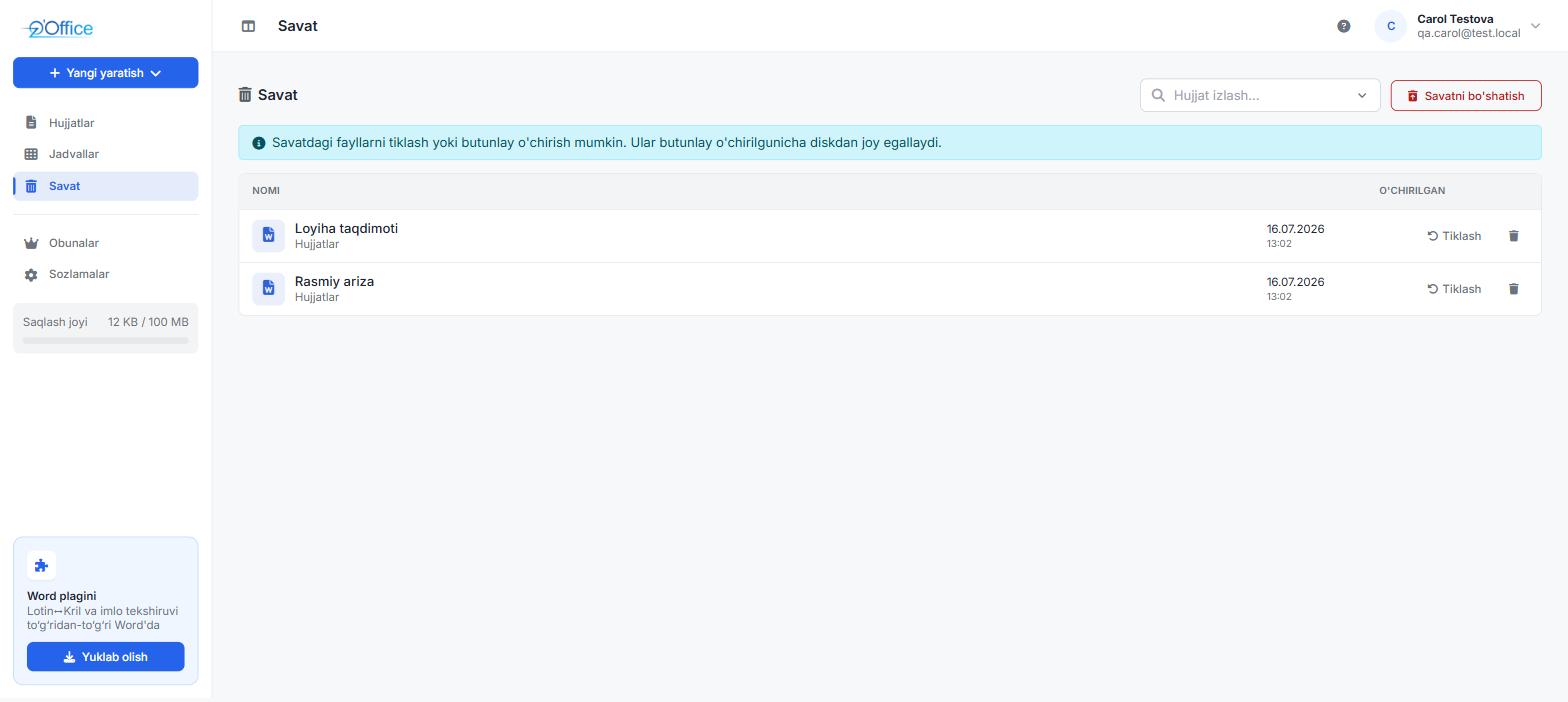
Go to the Trash section in the left menu. Every deleted document and spreadsheet appears here together with the date it was removed. Each row offers two actions: Restore and delete permanently.
Restore a file
To bring a deleted file back, click Restore next to it. The file returns instantly to its original section — Documents or Spreadsheets — and opens again. If the file had been shared with someone, that sharing is restored too.
Delete permanently
When you no longer need a file, click the trash icon beside it to delete it permanently. This can't be undone: the file is removed from disk and from the system. That is why a confirmation prompt appears first.
A permanently deleted file cannot be recovered. Only do this when you are certain.
Empty the Trash
To clear everything at once, use the Empty trash button in the top-right. It permanently deletes everything in the Trash — this action can't be undone either.
The Trash and your storage
Files in the Trash still sit on disk, so they count towards your storage usage. If you want to free up space, empty the Trash or delete unwanted files permanently.
At the same time, a deleted document no longer counts against your document limit — so moving a file to the Trash immediately frees a slot to create a new one.
Frequently asked questions
Do files in the Trash delete themselves?
No. Files stay in the Trash until you delete them permanently or empty the Trash yourself.
Where does a restored file go?
Back to its own section: text documents return to Documents, spreadsheets to Spreadsheets.
Can other users see my Trash?
No. The Trash is completely private — it shows only the files you deleted, and only you can open them.