

UzOffice is an online office that runs on documents and spreadsheets right inside your browser. There is nothing to install — you sign up, create your first file and start editing within seconds. Here is the whole journey, from the first click to your first saved document.
1. Create an account
Click Sign up in the top-right corner and enter your name, email address and a password. Make the password at least eight characters long; mixing upper- and lower-case letters, a digit and a symbol keeps your account safer.
Prefer not to invent another password? Sign in with your Google account instead — one click and you are in.
2. Confirm your email
Right after you register we send a message with a confirmation link. Open your inbox and click it. If the email hasn't arrived within a few minutes, check the Spam or Promotions folder. You can't sign in until the address is confirmed — that step keeps your account out of the wrong hands.
3. Sign in
Once your email is confirmed, open the Sign in page and enter your address and password. Tick Remember me so you don't have to type it again next time. Forgotten your password? The Reset password link will set a new one for you.
4. Get to know the dashboard
After signing in you land on the dashboard. The main sections sit on the left: Documents, Spreadsheets, Trash, Subscriptions and Settings. At the bottom you can see how much of your storage is in use.
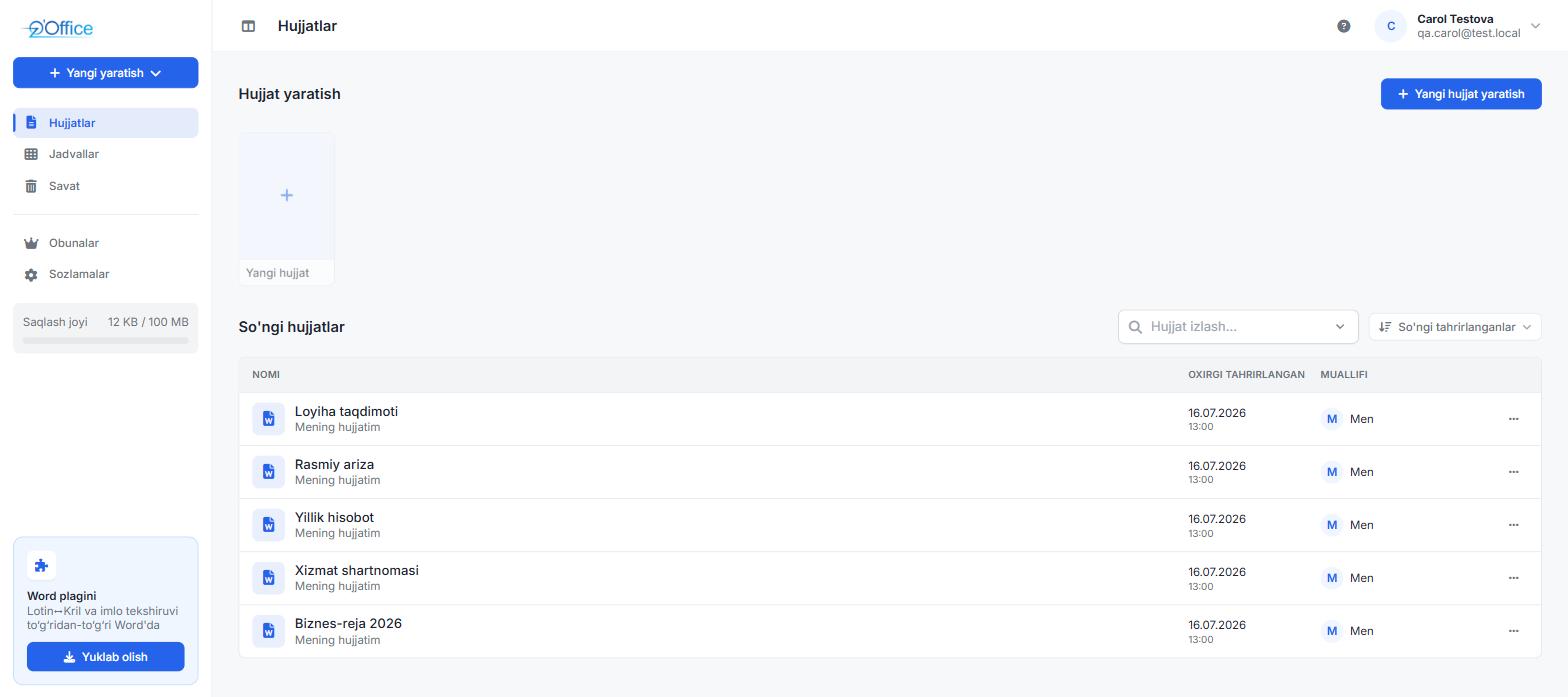
The question mark in the top-right opens a quick guide; the profile menu beside it lets you switch language, open settings or sign out.
5. Create your first document
In the Documents section, click New document or pick a ready-made template. The document opens straight away and you can start typing — every change is saved automatically, so there is no Save button to hunt for.
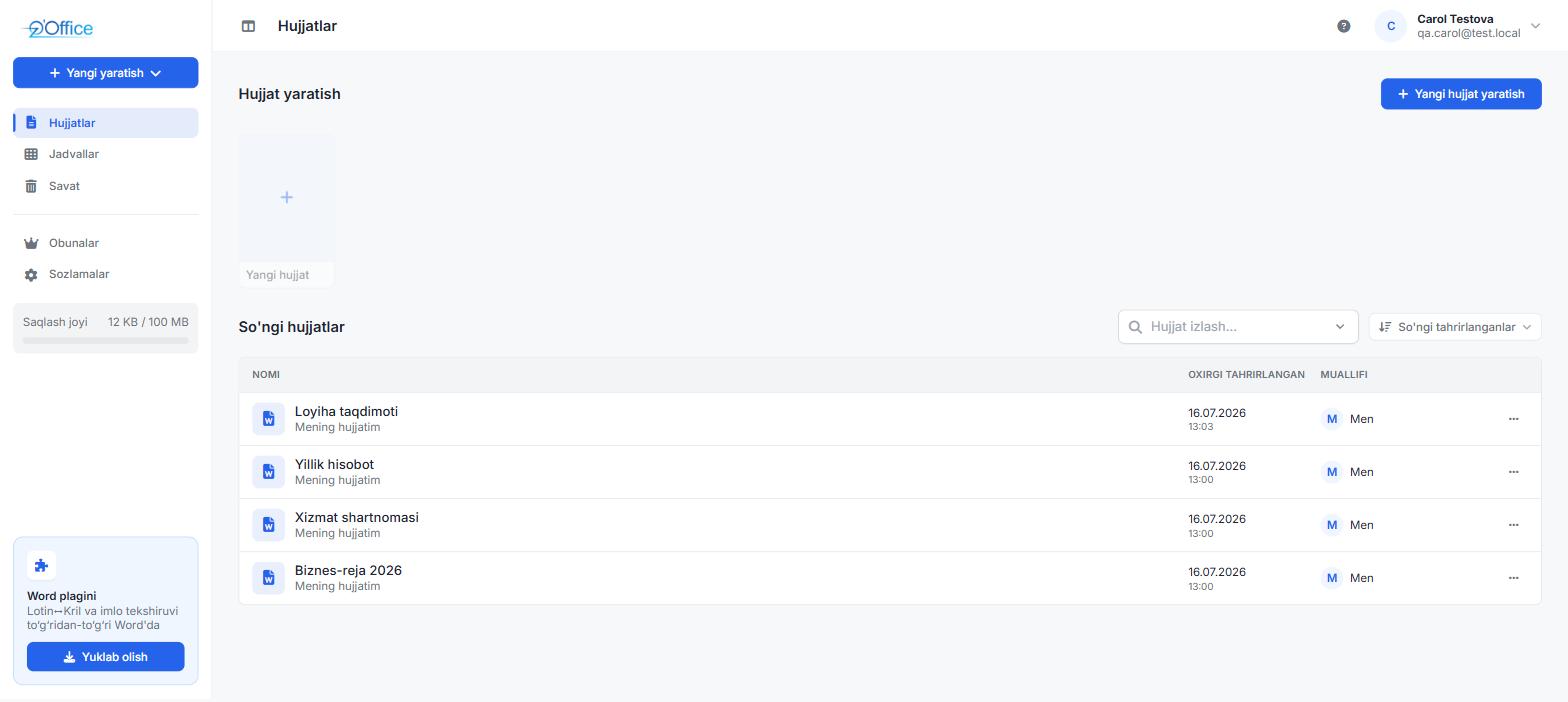
To rename a document, click its title at the top of the editor and type a new name. Your files open from any device — computer, tablet or phone.
Where to go next
You know the basics now. Dig a little deeper into what UzOffice can do:
- Working with text documents — formatting, tables, images and export.
- The Trash — restore deleted files or remove them for good.
Frequently asked questions
Does UzOffice cost anything?
Signing up is free. The free plan lets anyone create and edit documents and spreadsheets; subscription plans add more storage and extra capabilities.
Where are my files stored?
All files live on UzOffice servers, tied to your account. Only you and the people you share them with can open them.
Do I need to install anything?
No. UzOffice runs entirely in the browser. The only optional add-on is for Word — it brings Latin–Cyrillic conversion and spell-checking straight into Word.